Visual Basic 6
- Start Visual Basic and create a new EXE project.
- From the menu bar, select Project > Components... This will bring up a list of components registered on your computer as shown in the screen shot below.
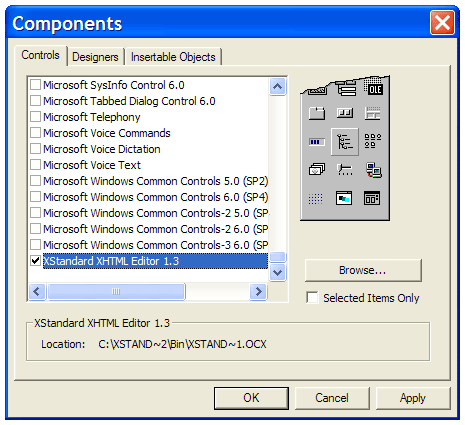
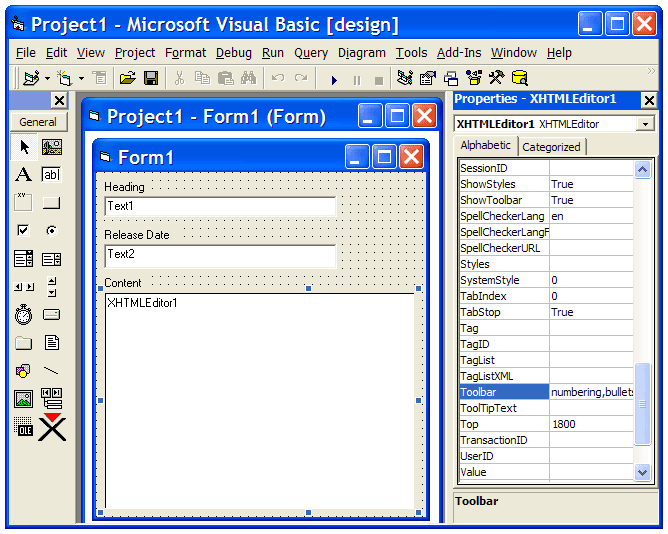
Scroll to the bottom of the list, select "XStandard XHTML Editor" and press the OK button. The XStandard control will now be visible on the Toolbox. - Select the XStandard control from the Toolbox and place it on a form. Use the "Properties Window" to configure the editor as shown in the screenshot below.
Tips
Put data into the editor via the .Value property. For example:
XHTMLEditor1.Value = "<p>Hello World</p>"
Use the .Value property to get the data from the editor. For example:
MsgBox XHTMLEditor1.Value
You can store the XML file for the Styles drop-down list, CSS, XML file for the toolbar buttons and the license file in "VB Resources". You can then programmatically reference these files. For example:
XHTMLEditor1.Styles = StrConv(LoadResData(101, "CUSTOM"), vbUnicode)